How do I send a quote and get it accepted?
Make the quote, send it by text or email, and your client accepts and signs it from the link. You see it straight away.
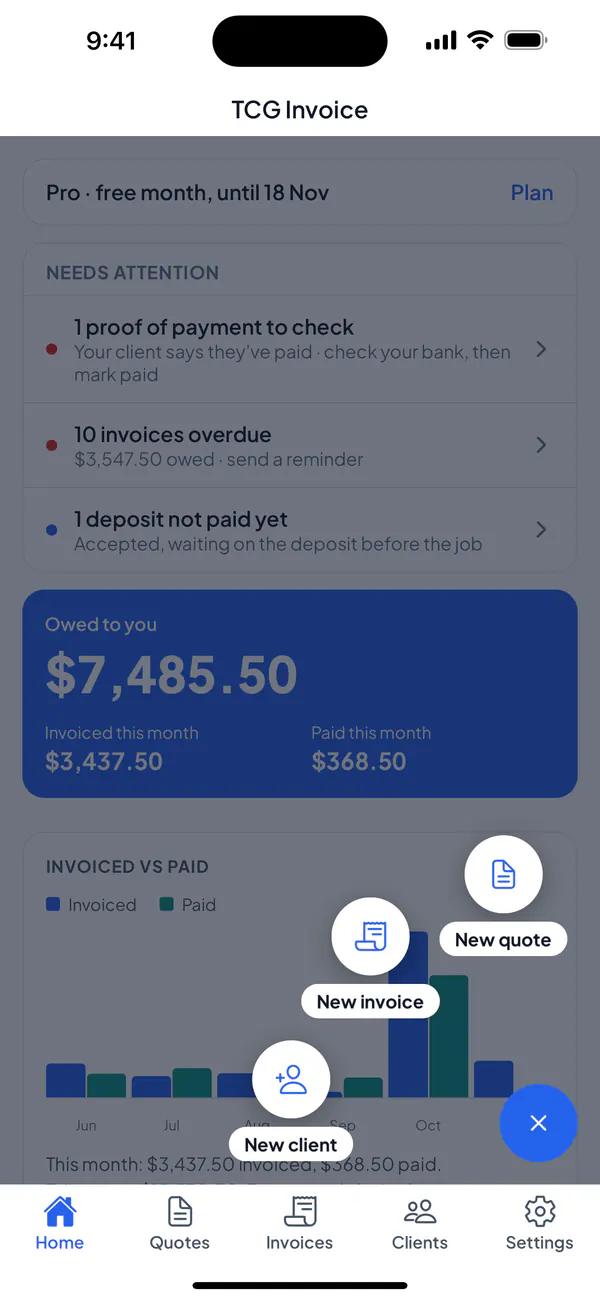
Step 1: Tap New, then New quote.
Step 2: Choose a client, or add a new one.
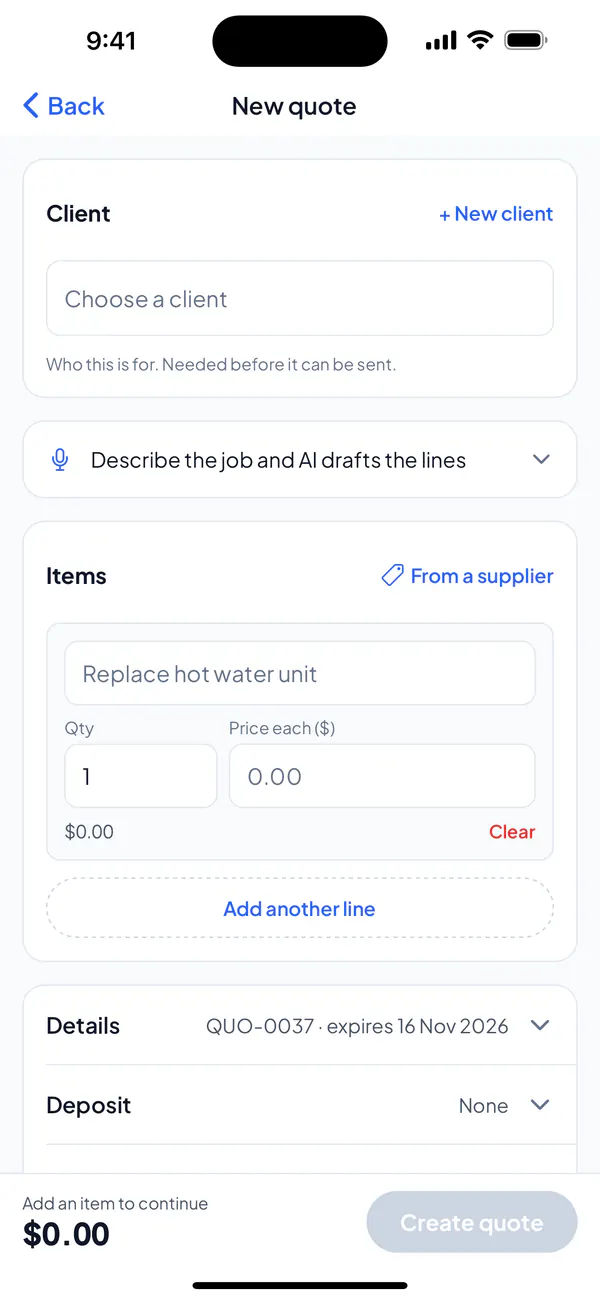
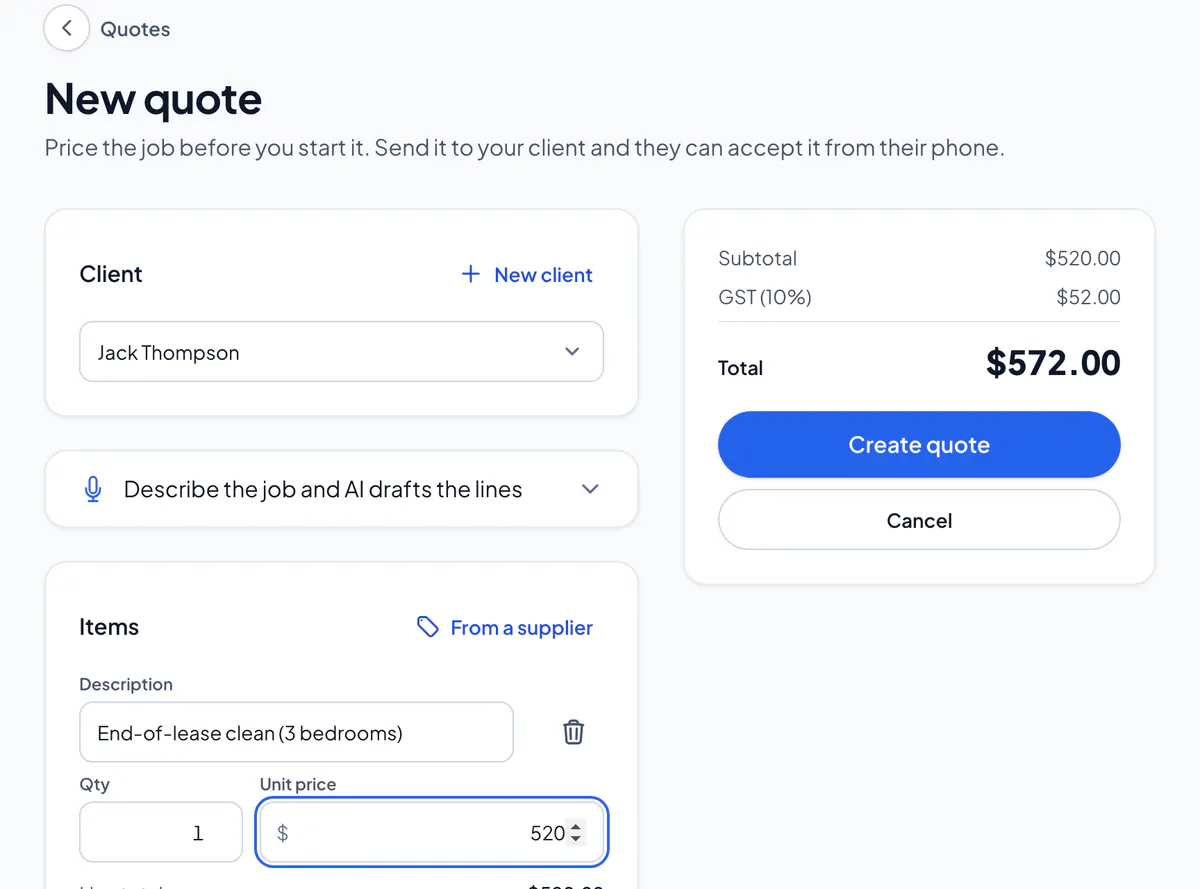
Step 3: Add a line for each item, with its price. Or describe the job, and AI drafts the lines for you to check.
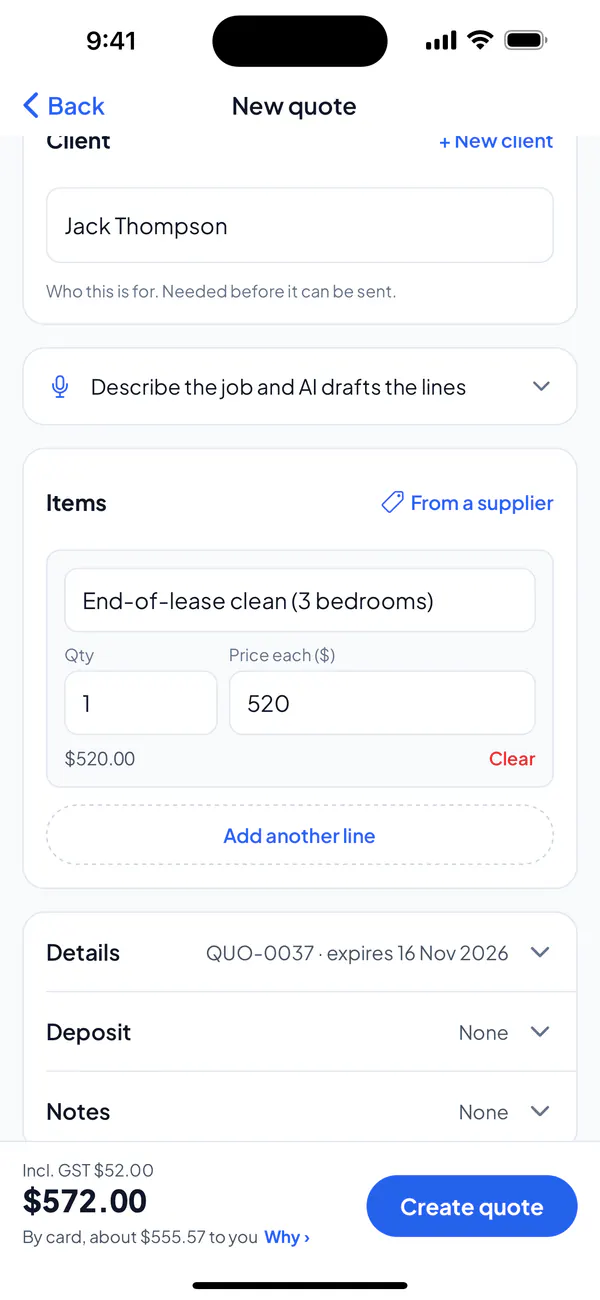
Step 4: Tap Create quote.
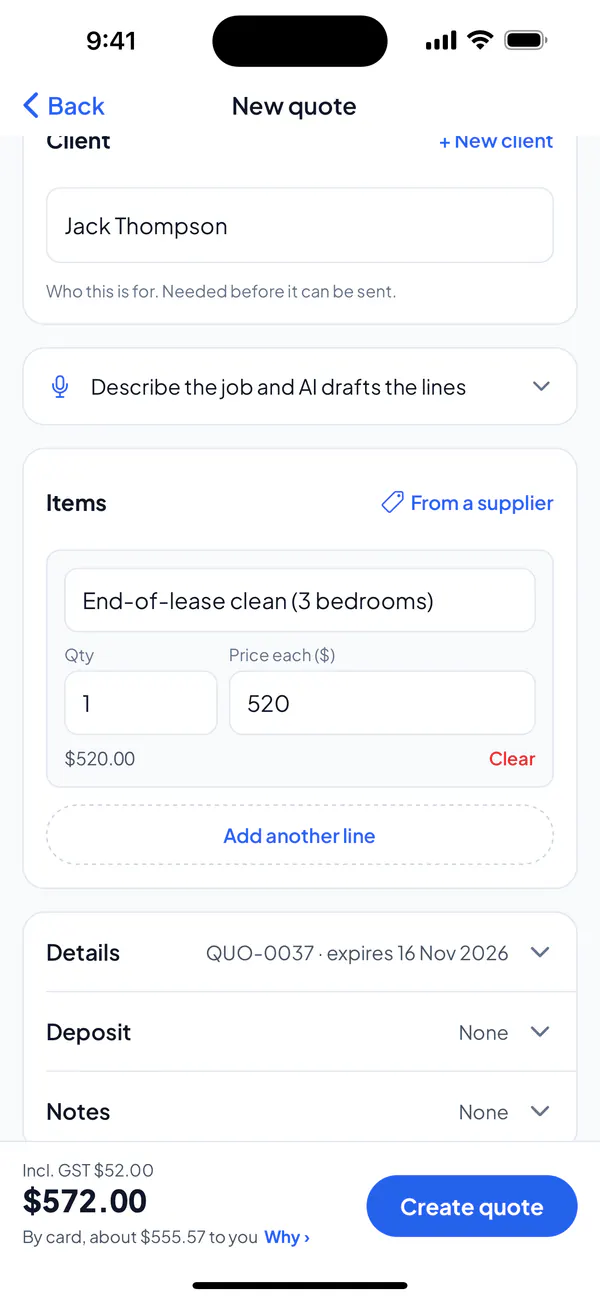
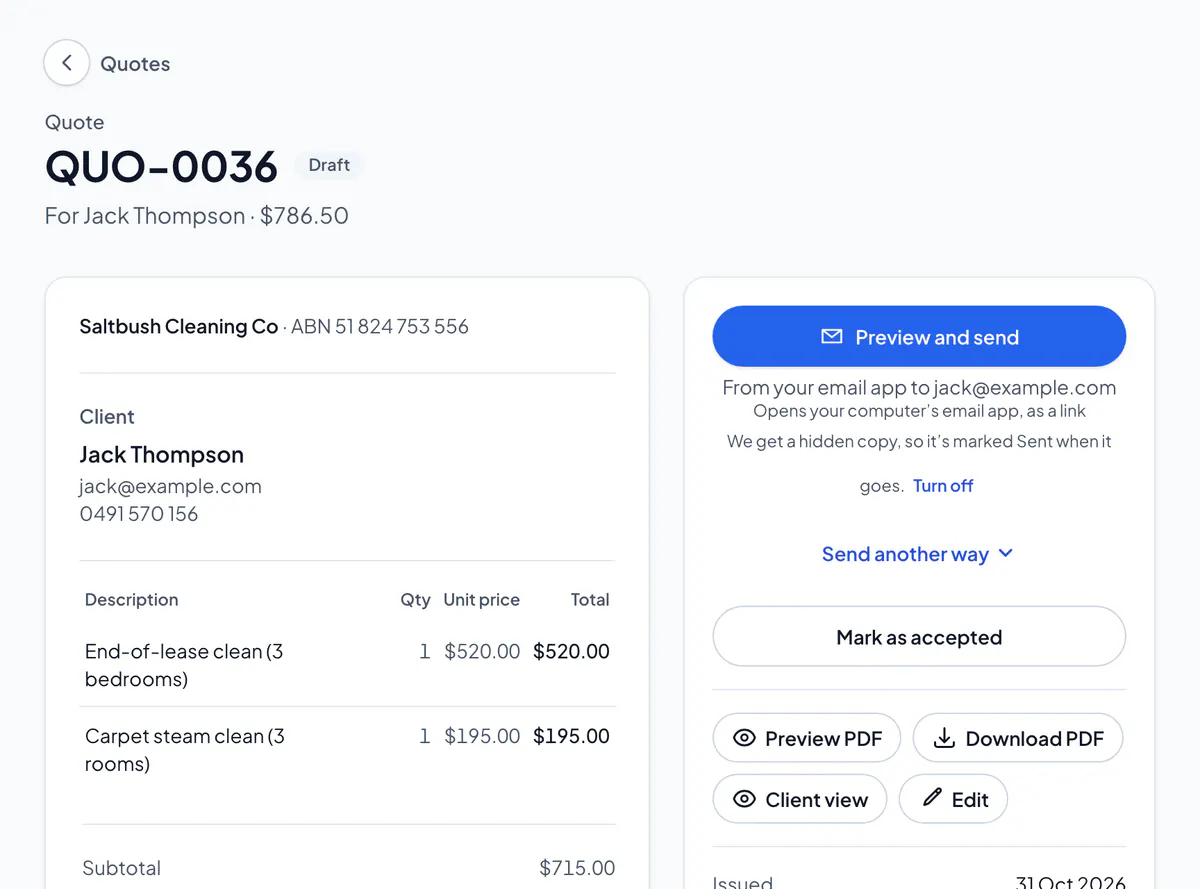
Step 5: Tap Preview and send. Check the quote and the message, then tap Send: it says how, by email, on WhatsApp or by text. Another way? Tap Send another way.
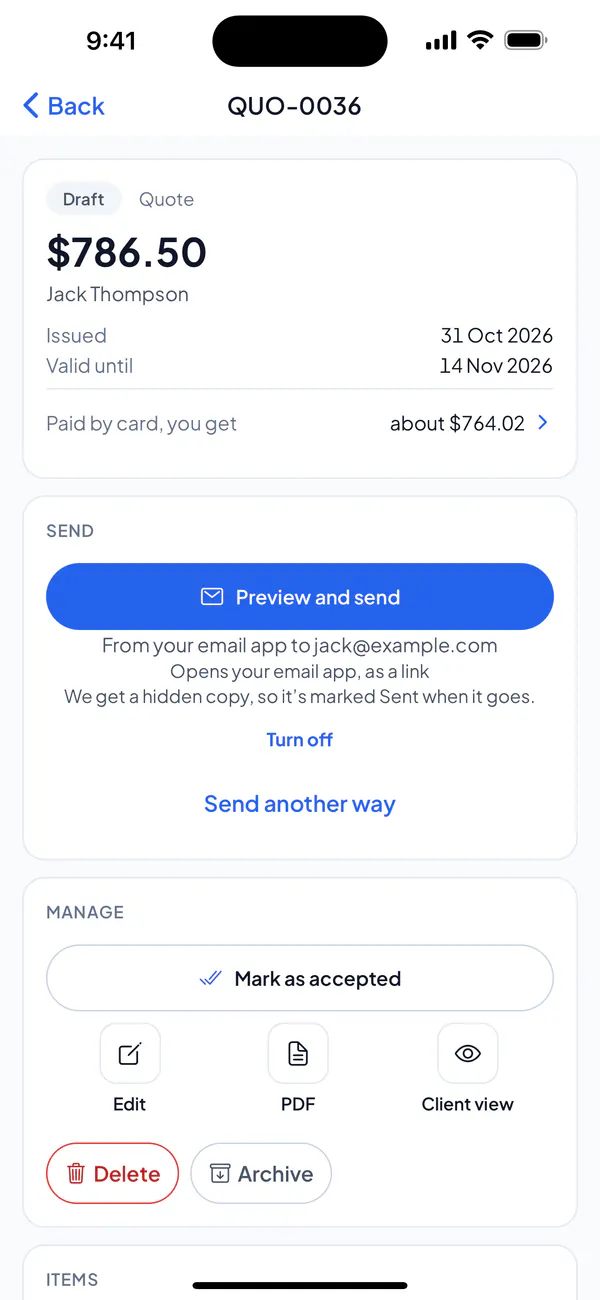
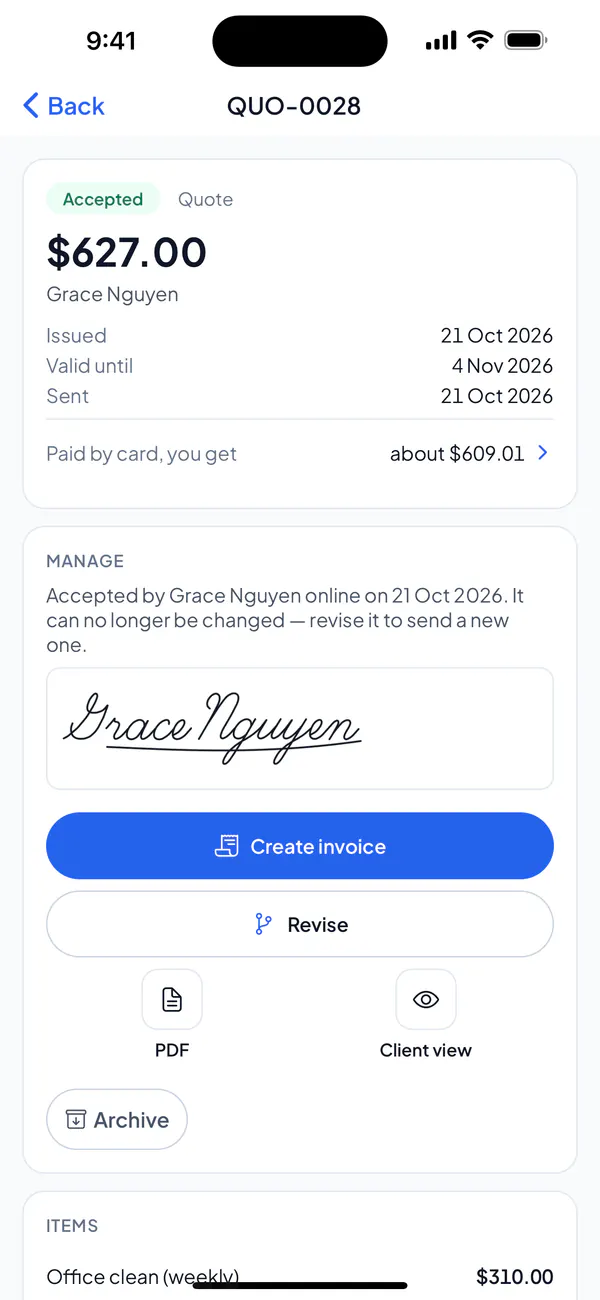
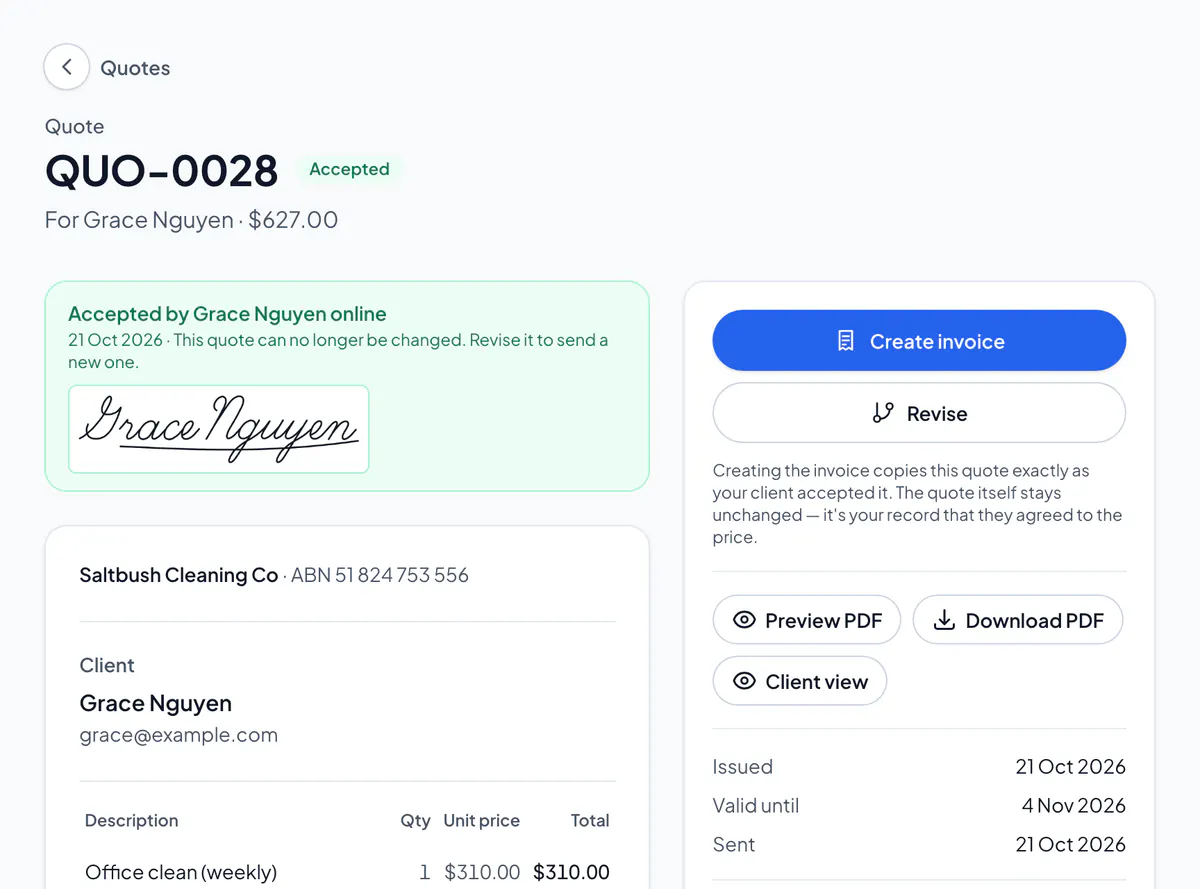
Step 6: When your client accepts, the quote says Accepted, with their signature.
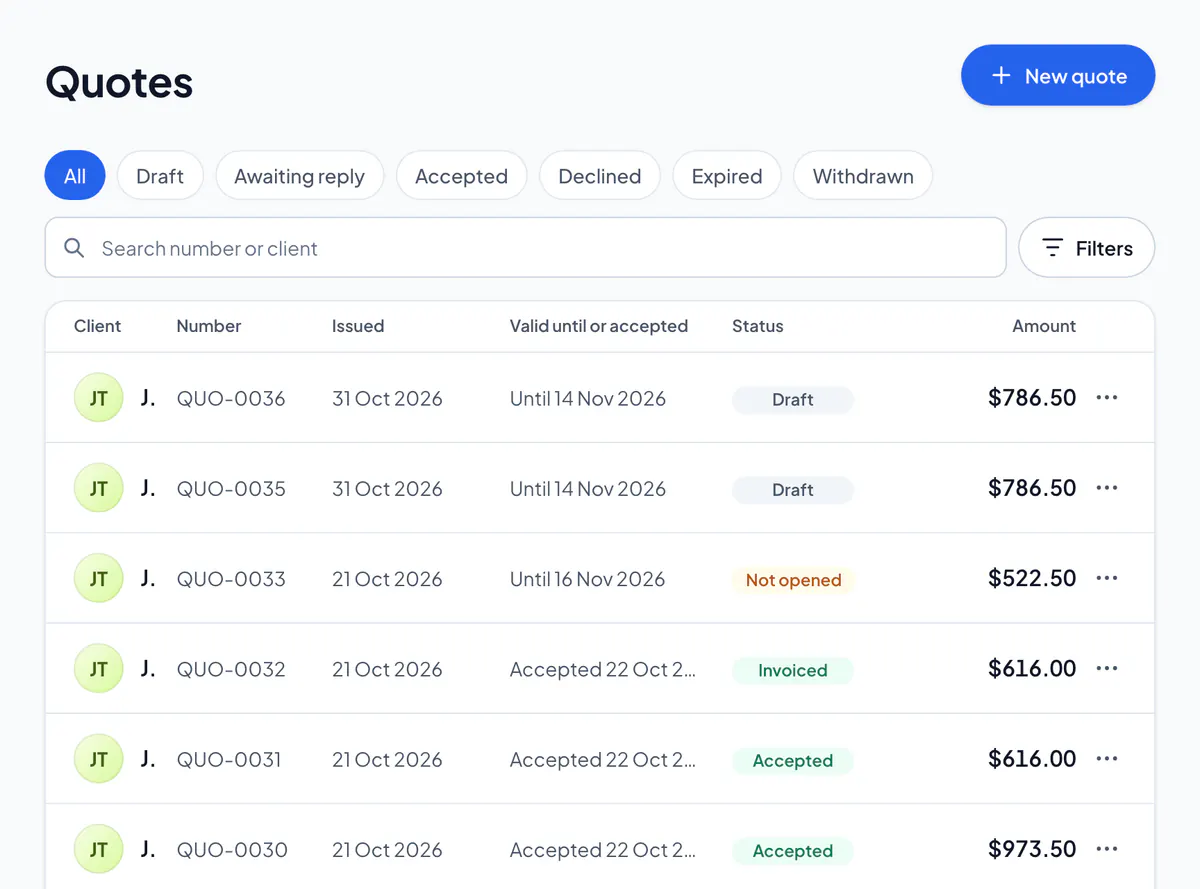
Step 1: Choose Create, then Quote (or New quote, on Quotes).
Step 2: Choose the client and add the lines, or describe the job and AI drafts them. Then choose Create quote.
Step 3: Choose Preview and send. Check the quote and the message, then choose Send: it says how, by email, on WhatsApp or by text. Another way? Choose Send another way.
Step 4: When your client accepts, the quote says Accepted, with their signature.
Your client gets a link by text or email. They open it, type their name, sign and choose Accept this quote.
Once your client opens the link, the quote says Viewed, with when. Invoices too. Read only as the PDF attached to an email, it stays Sent. To see what your client sees, choose Client view: it never counts. Your own tap on the link, in WhatsApp or a text on your phone, would.
An email from TCG Invoice or your connected Gmail has the PDF attached, and so does your own email sent from the app (on iPhone, from Mail). Every other way sends the link, where your client opens the quote and can download the PDF; the preview says which. To send the PDF itself, choose Share the PDF instead (Download the PDF instead on the website).
Preview and send goes your usual way, chosen for you when you signed up; the line under it says which. Change it in Settings → Invoices & quotes → How you send. From your own email, a hidden copy to us marks it sent when it goes; your client doesn’t see it. The line under Send says so, and Turn off there stops it for every email (so does Mark sent when it goes, under Your email app in How you send → Emails from); with it off, you say it went when you’re back. From your own WhatsApp or texts, say it went when you’re back.
A yes in person or on the phone? Open the quote and choose Mark as accepted.
An accepted quote can’t be changed: it’s what your client agreed to. To change it, revise it, and your client accepts the new one.
Did this answer your question?
Related articles
Still stuck?
Email support@thetechcompanygroup.com and we’ll help, or see Support.