How do I add photos and a job report?
Open the quote or invoice and choose Photos and job report. Add before and after photos: your client sees them with it.
Step 1: Open the quote or invoice and tap Photos and job report, under the items. Once it has photos, it says Job card.
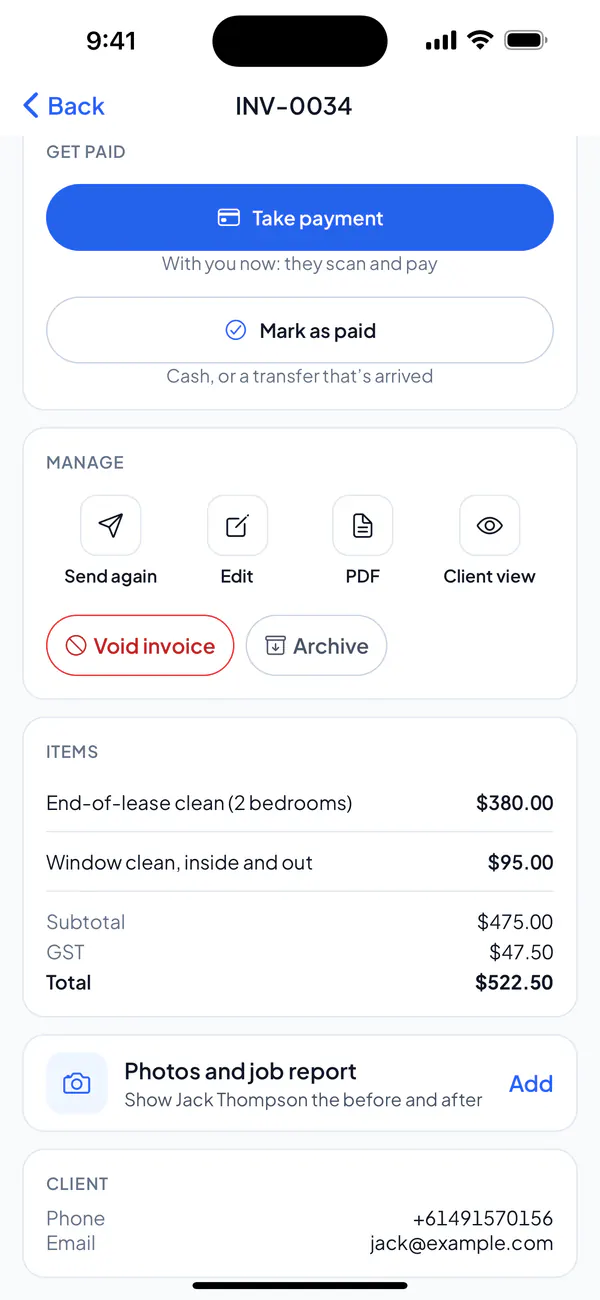
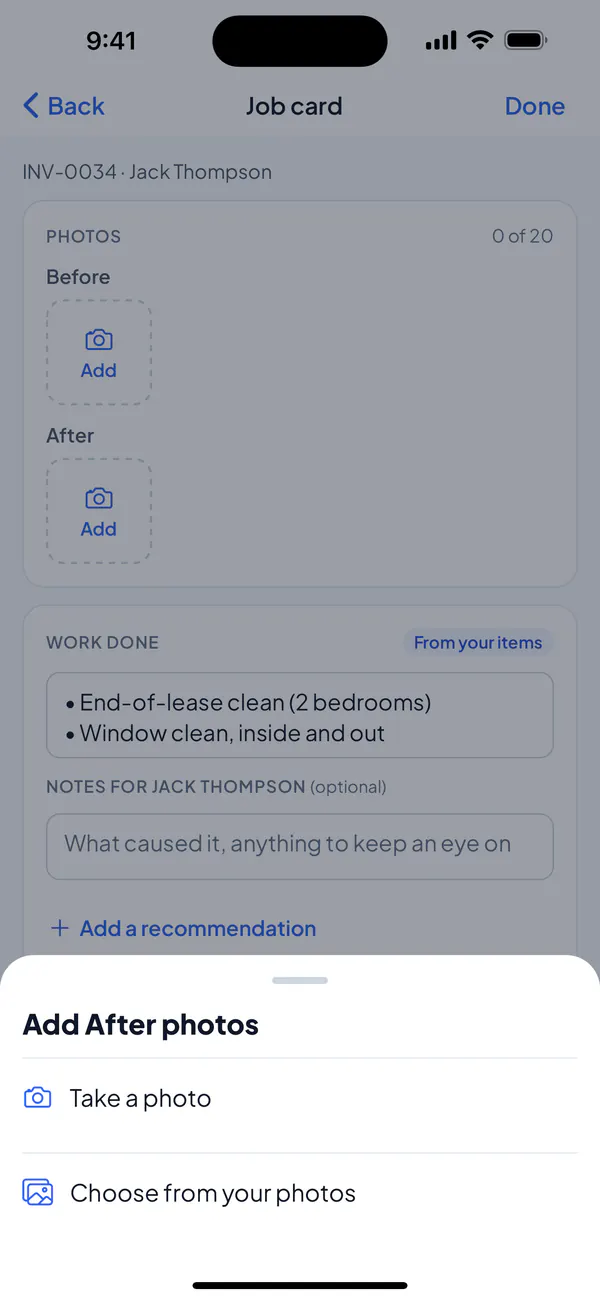
Step 2: Tap Add under Before or After, then Take a photo, or Choose from your photos (several at once). They go in that group.
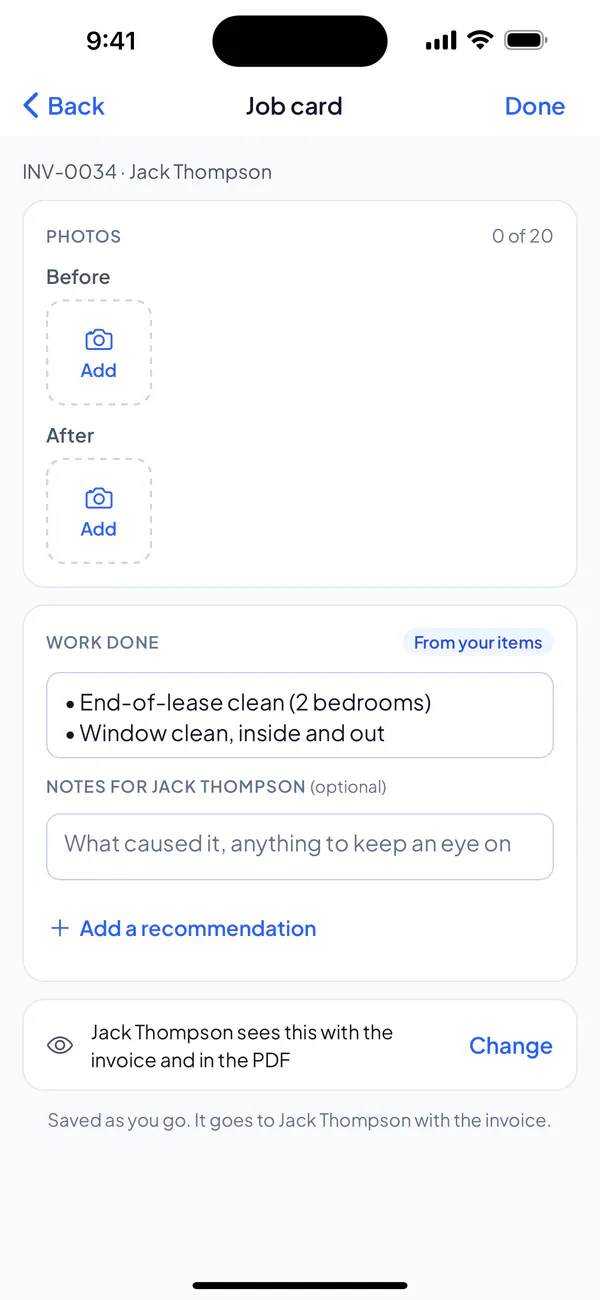
Step 3: Check the work done, marked From your items: it’s the invoice’s items until you change it. Add notes for your client if you like. It’s saved as you type.
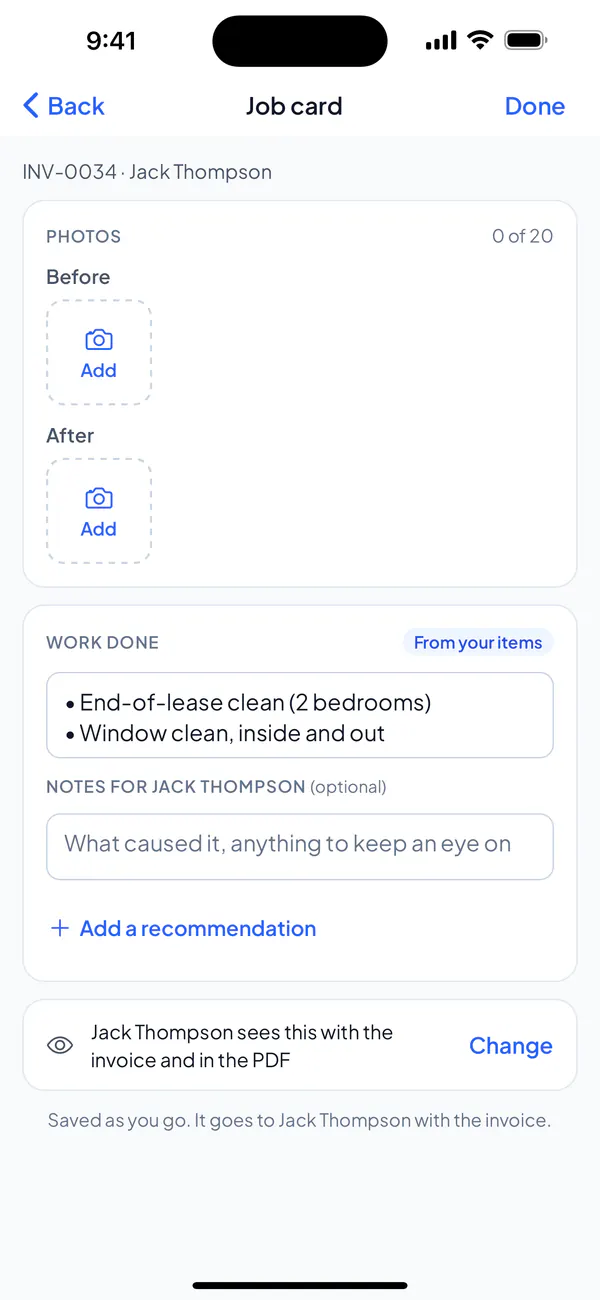
Step 4: Your client sees it with the quote or invoice and in its PDF. To change that, or to ask them to sign off the job, tap Change.
Step 1: Open the quote or invoice and choose Photos and job report, under it.
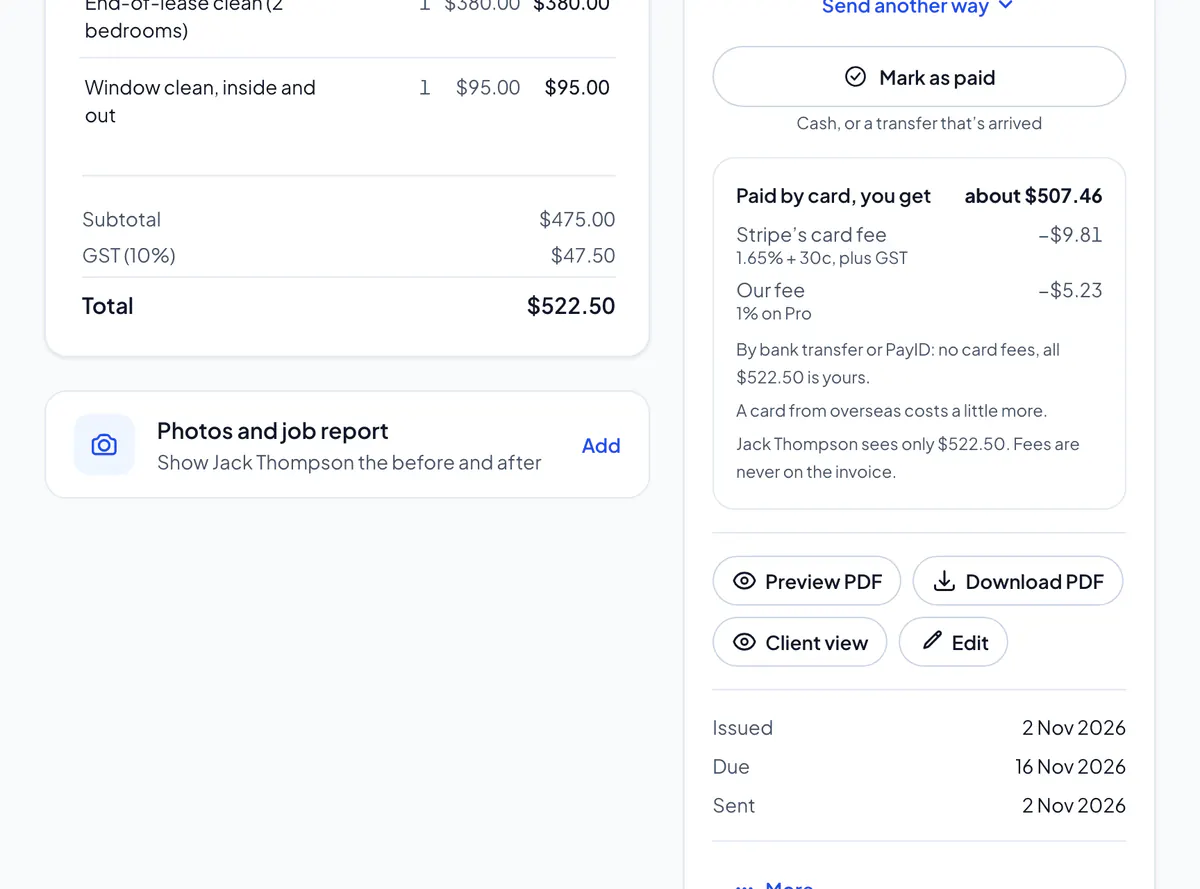
Step 2: Choose Add Before photos or Add After photos, and pick your photos. Or drop them on it.
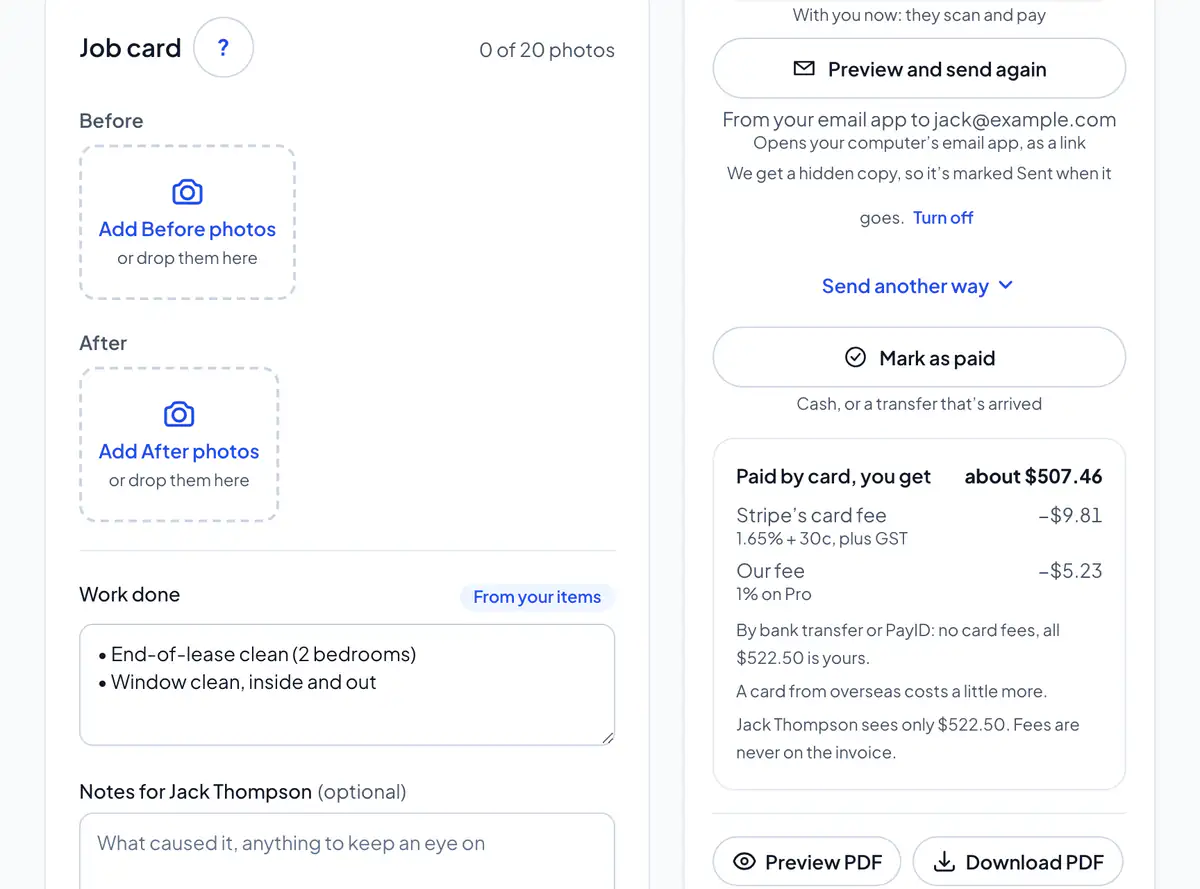
Step 3: Check the work done, marked From your items: it’s the invoice’s items until you change it. Add notes for your client if you like. It’s saved when you leave the box.
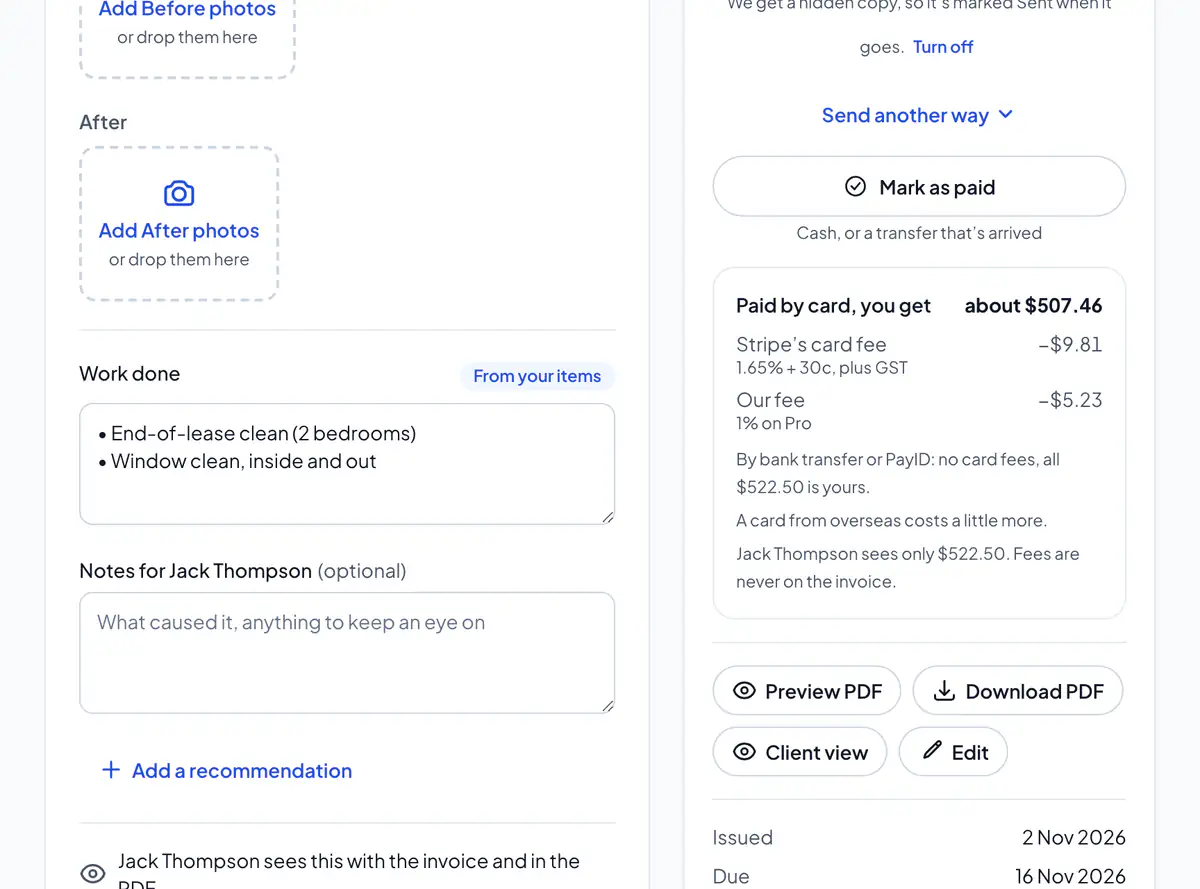
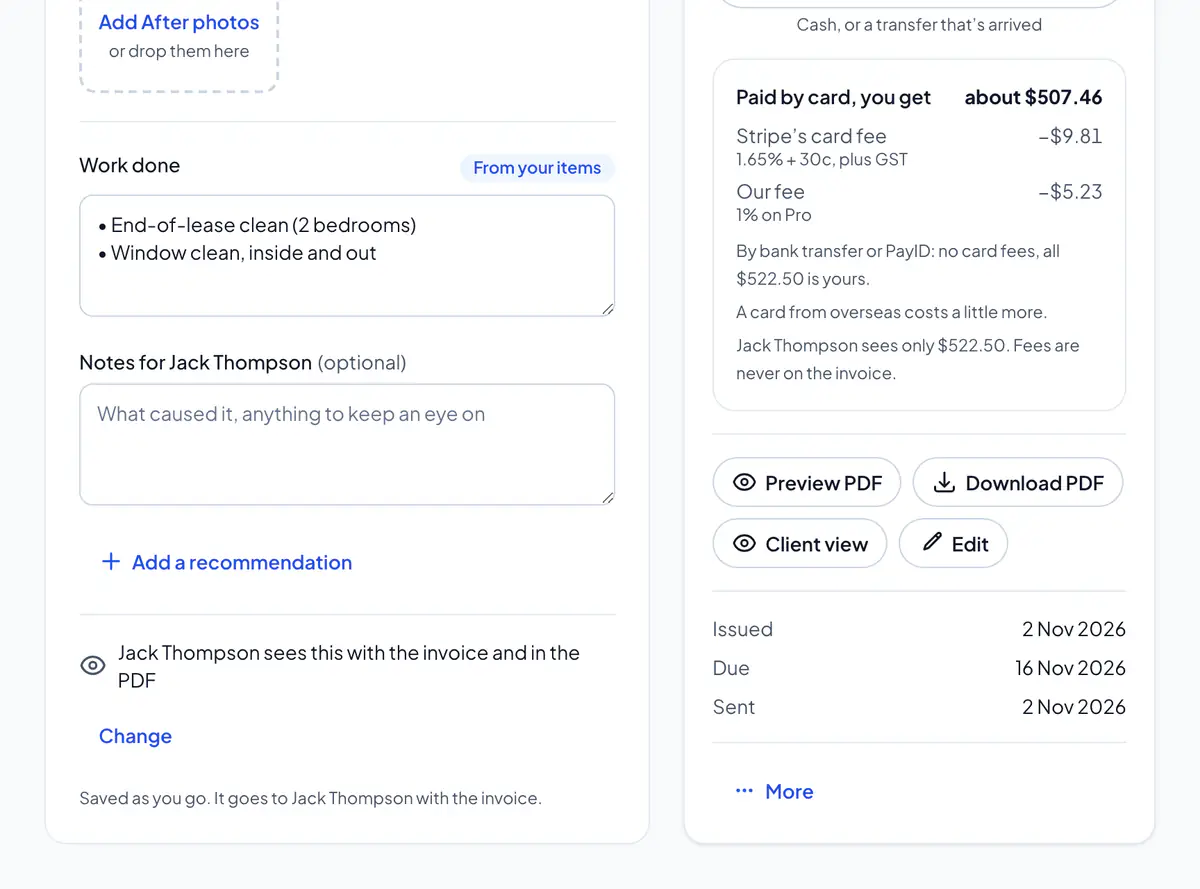
Step 4: Your client sees it with the quote or invoice and in its PDF. To change that, or to ask them to sign off the job, choose Change.
On a quote, the job card has photos only: Before photos, to show your client why the work is needed. They go with the invoice made from it, where you add the After photos and the report.
Tap a photo (on the website, choose it) to see it full size: add a caption, move it between Before and After, or delete it. Choose Add a recommendation for work worth doing next. Changed the work done? Use the invoice’s items again puts the items back.
Asked to sign off, your client taps Job done on their page, and the job card shows their name and when.
Photos are kept without where they were taken. A job holds up to 20, on every plan. Who sees it is kept for your next jobs, and staff can add photos to their own quotes and invoices.
Did this answer your question?
Related articles
Still stuck?
Email support@thetechcompanygroup.com and we’ll help, or see Support.