How do I add a client?
Add them on Clients: their name, and their mobile or email. With their mobile you can send by text; with their email, by email.
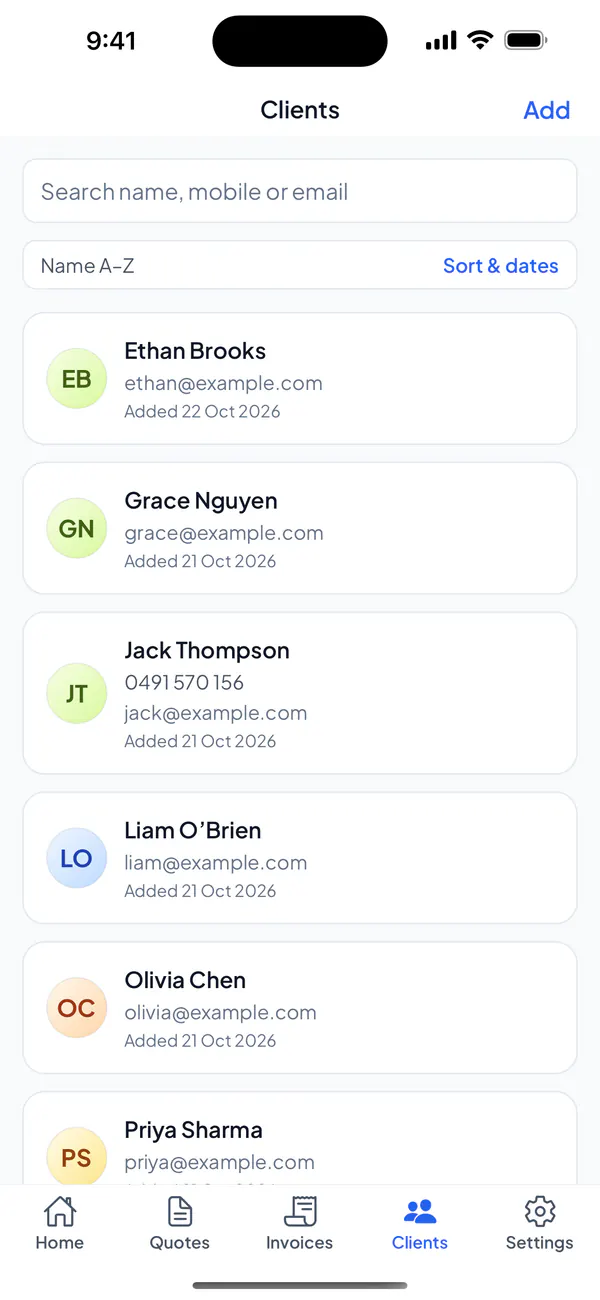
Step 1: On Clients, tap Add (or, on Home, tap New, then New client).
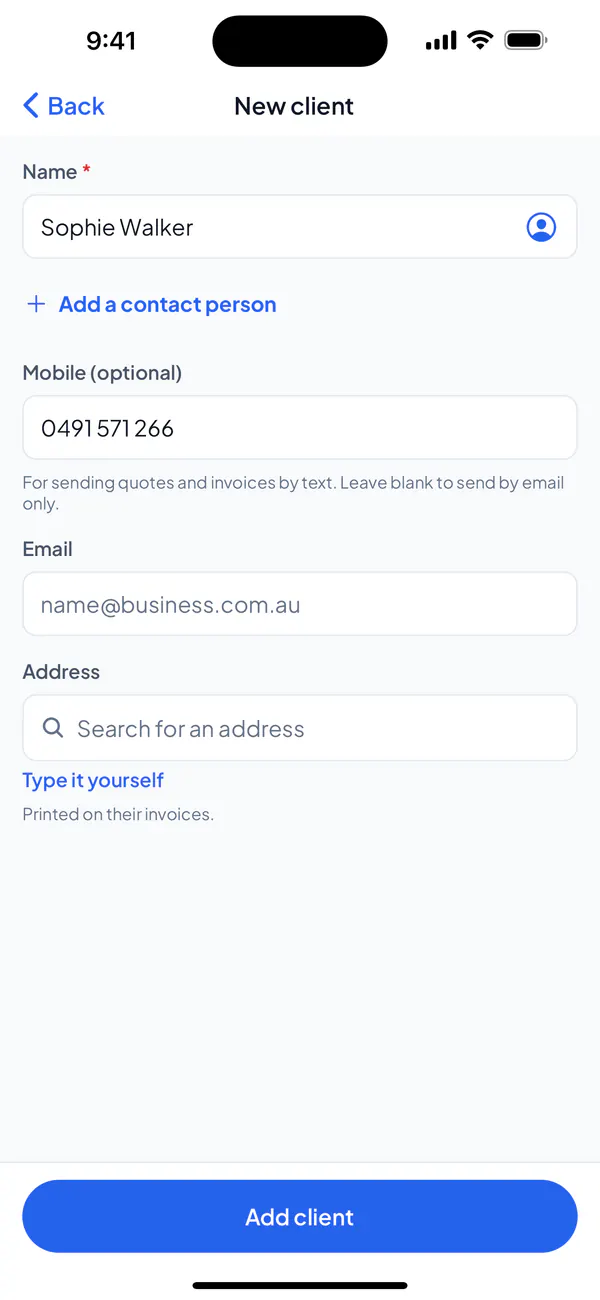
Step 2: Type their name, and their mobile or email, or both.
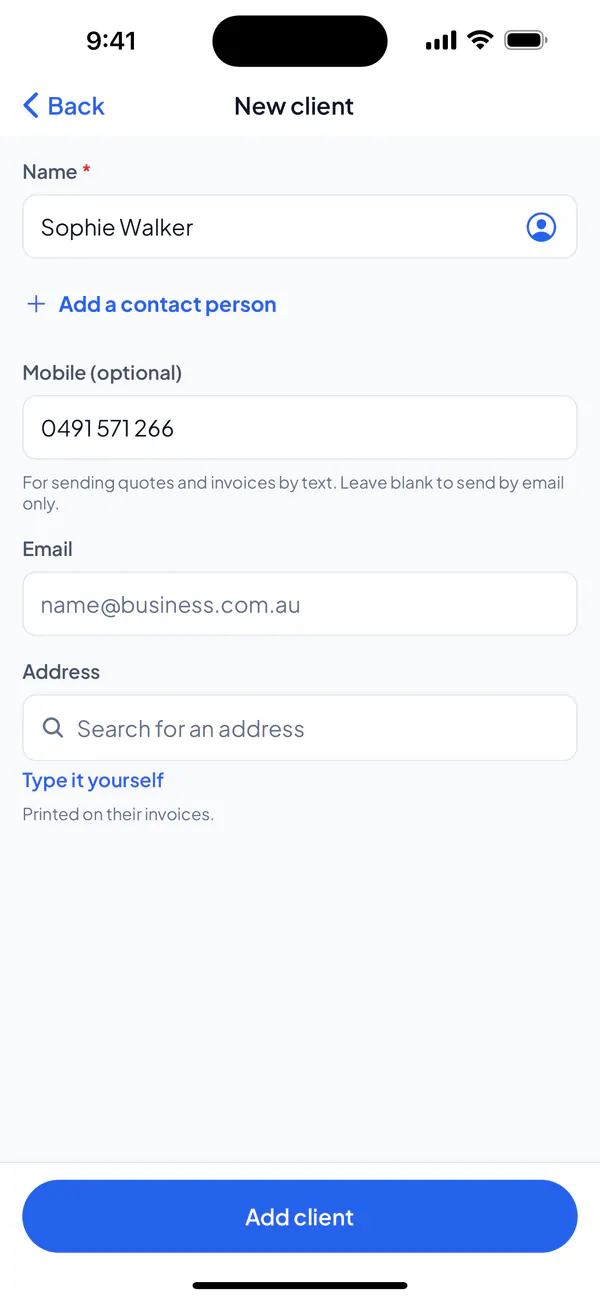
Step 3: Tap Add client.
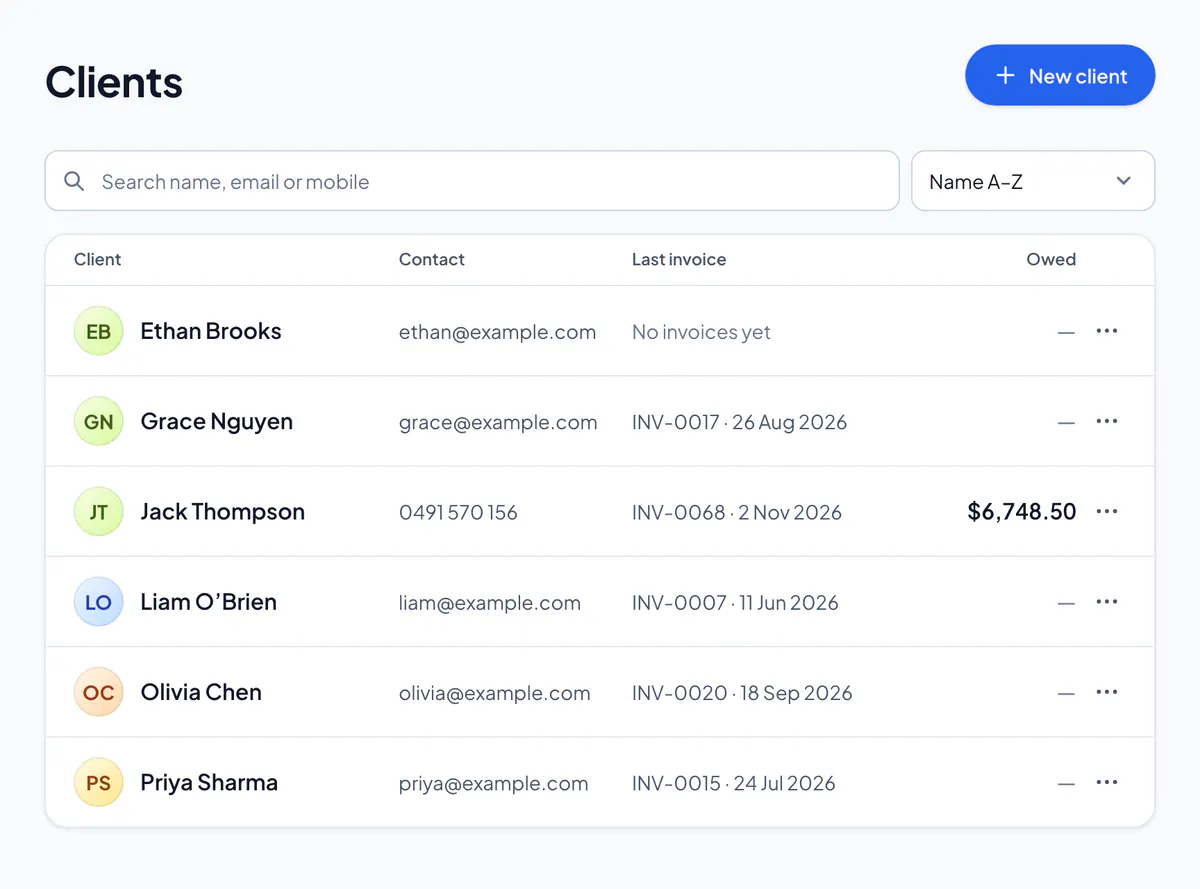
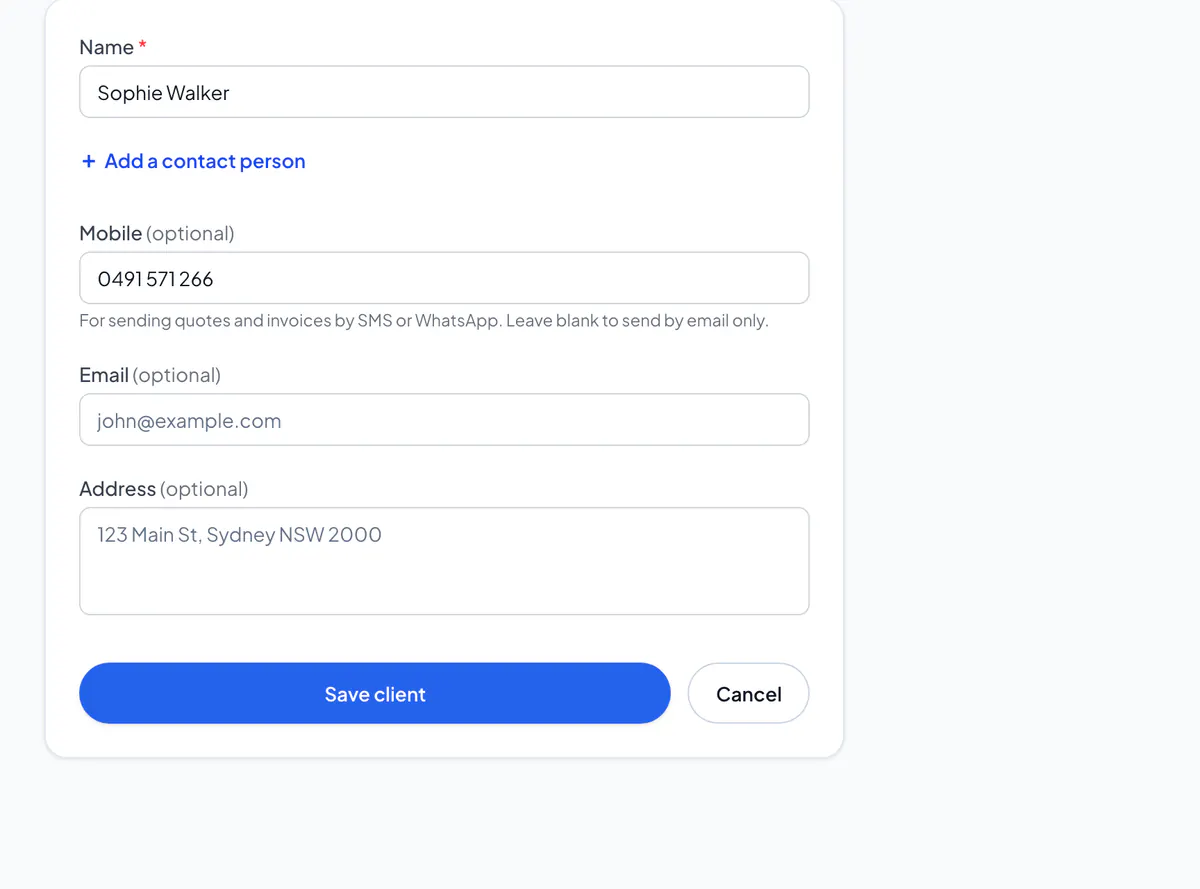
Step 1: Open Clients and choose New client.
Step 2: Type their name, and their mobile or email, or both.
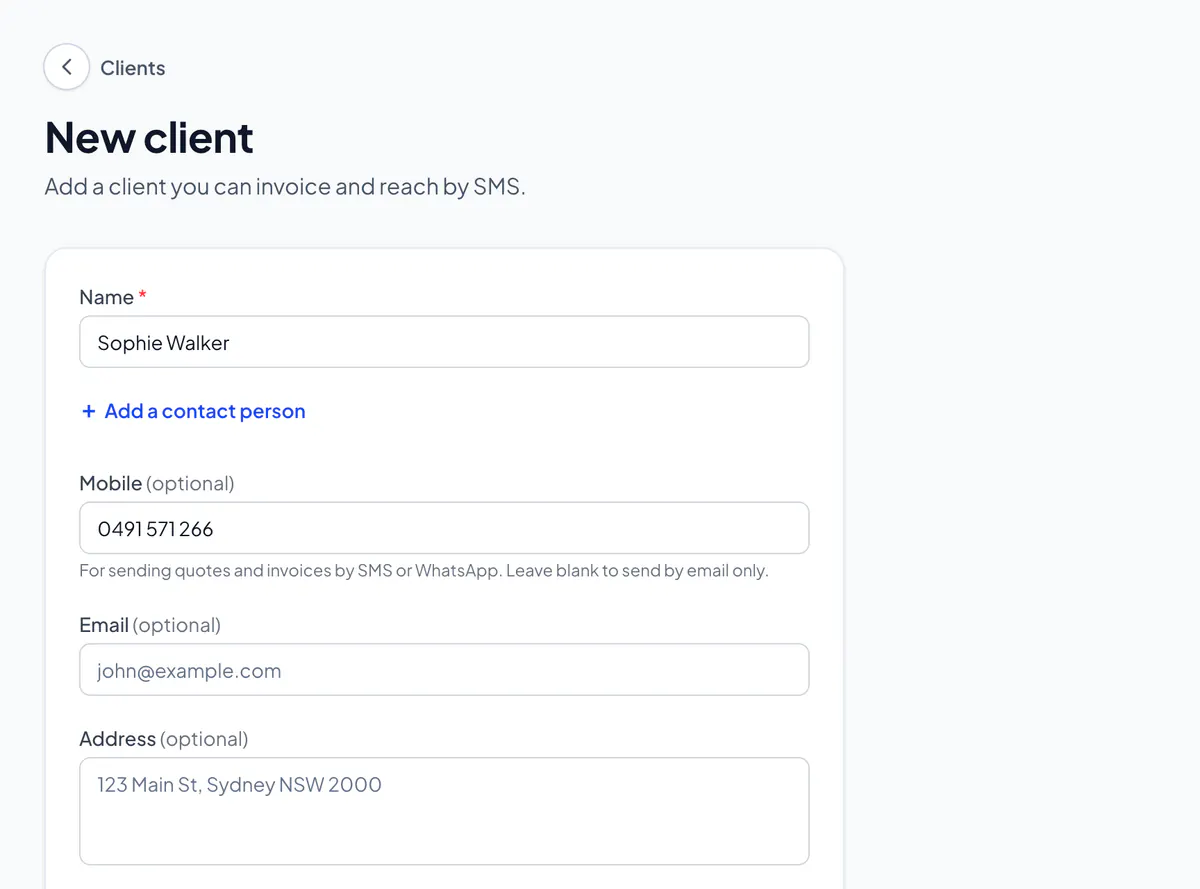
Step 3: Choose Save client.
On your phone, tap the contacts icon in the Name box to pick them from your phone’s contacts, or type a name to see matches. A contact’s photo shows beside your client, on your phone only: it’s never uploaded. On an iPhone where you shared only some contacts, Share more contacts under the matches lets you choose more.
Already a client? As you type, anyone on your list with the same mobile or email, or a similar name, shows under Already a client?, to open instead. A different person? Carry on and save.
Billing a business, like a real estate agency? Type the business’s name in Name, then Add a contact person under it for the person you deal with there. Your quotes and invoices say Attn: and their name, and your emails and messages start with Hi and their first name. Put the email the business wants them sent to in Email: theirs, or its accounts team’s.
Did this answer your question?
Related articles
Still stuck?
Email support@thetechcompanygroup.com and we’ll help, or see Support.