How do I change my email or password?
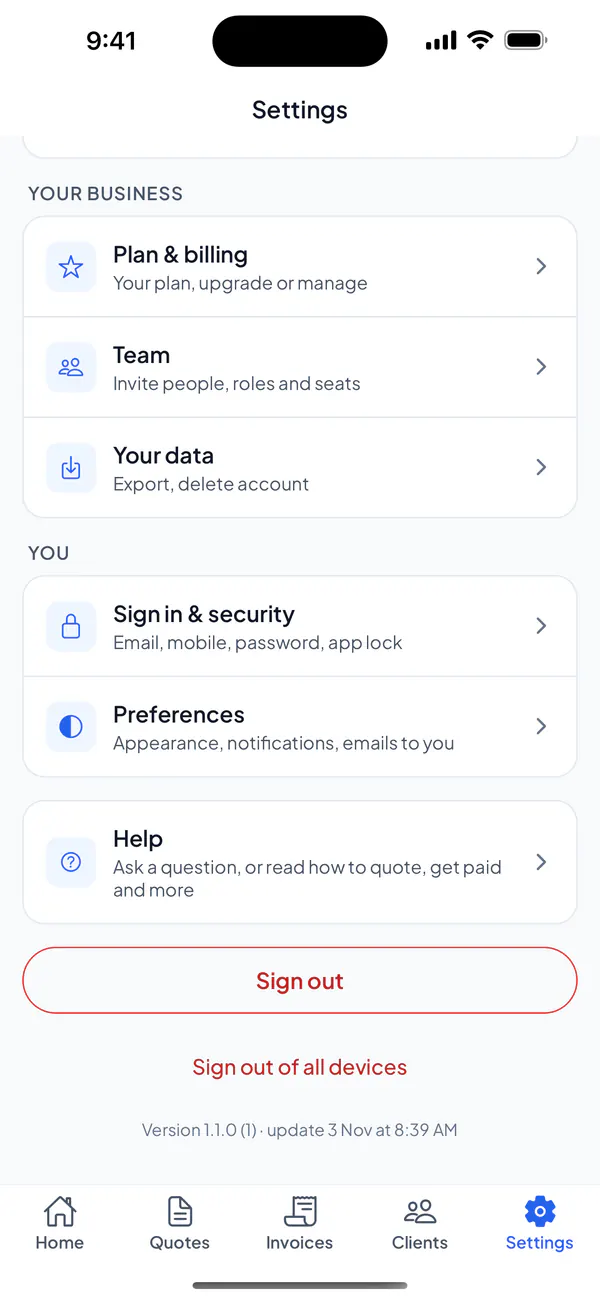
In Settings → Sign in & security: a new email is confirmed from a link we send to it; a new password works straight away.
Step 1: Open Settings → Sign in & security.
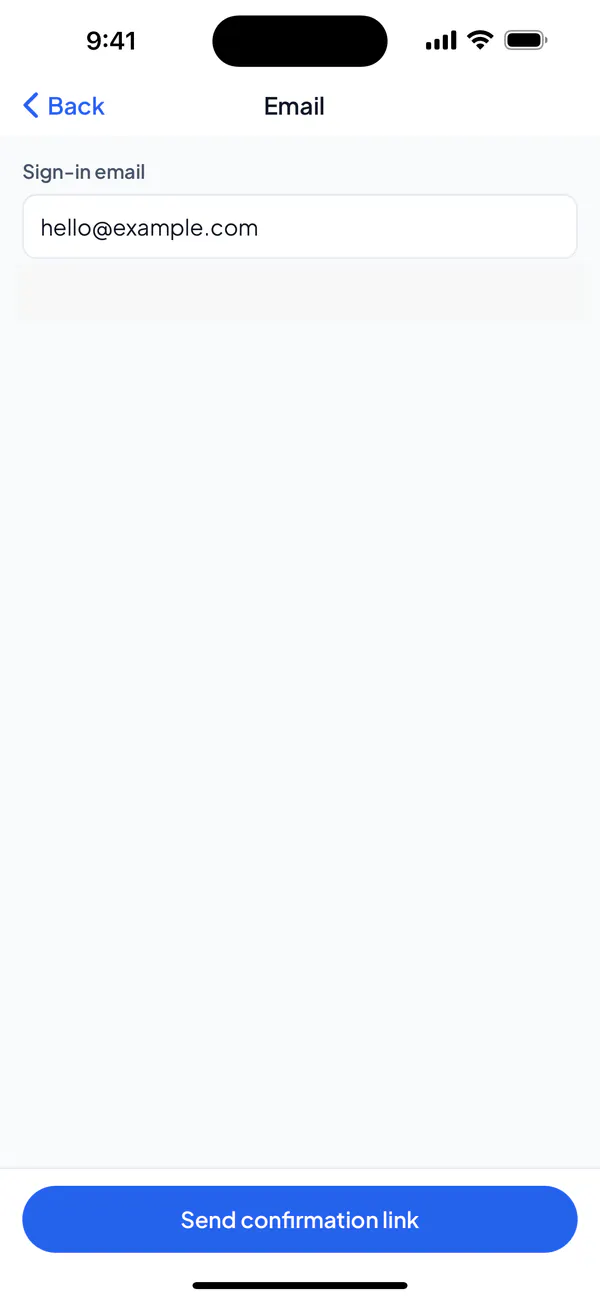
Step 2: Tap Email, type your new email over the old one and tap Send confirmation link. Open the link in that email to finish.
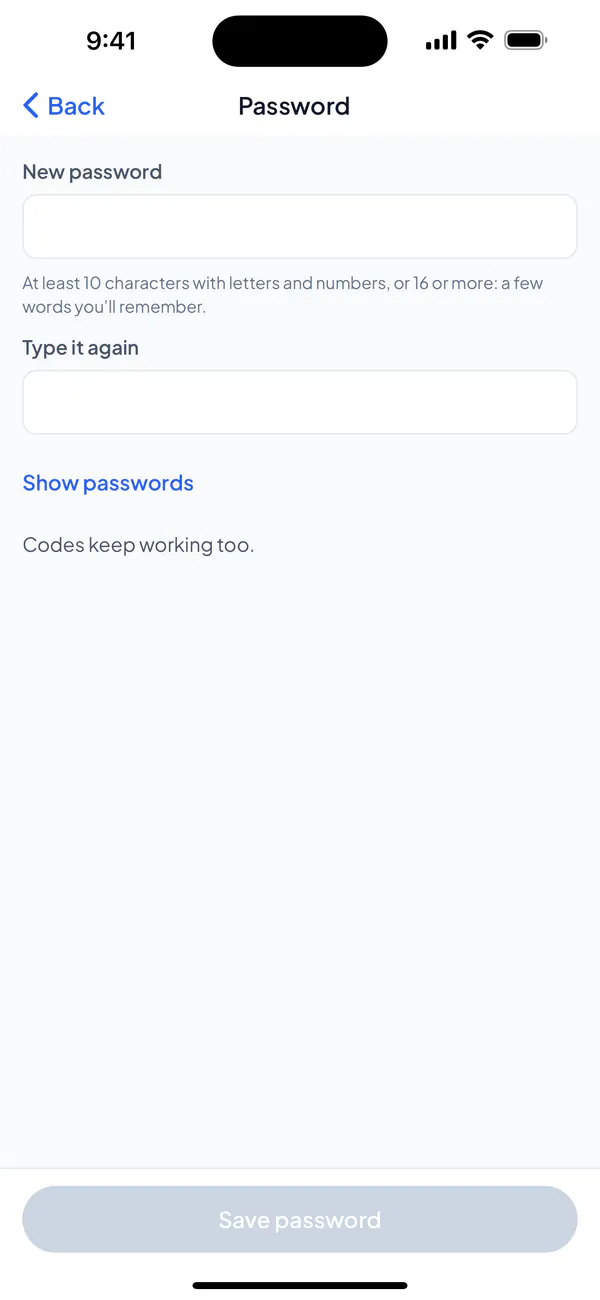
Step 3: For your password, tap Password, type it twice and tap Save password.
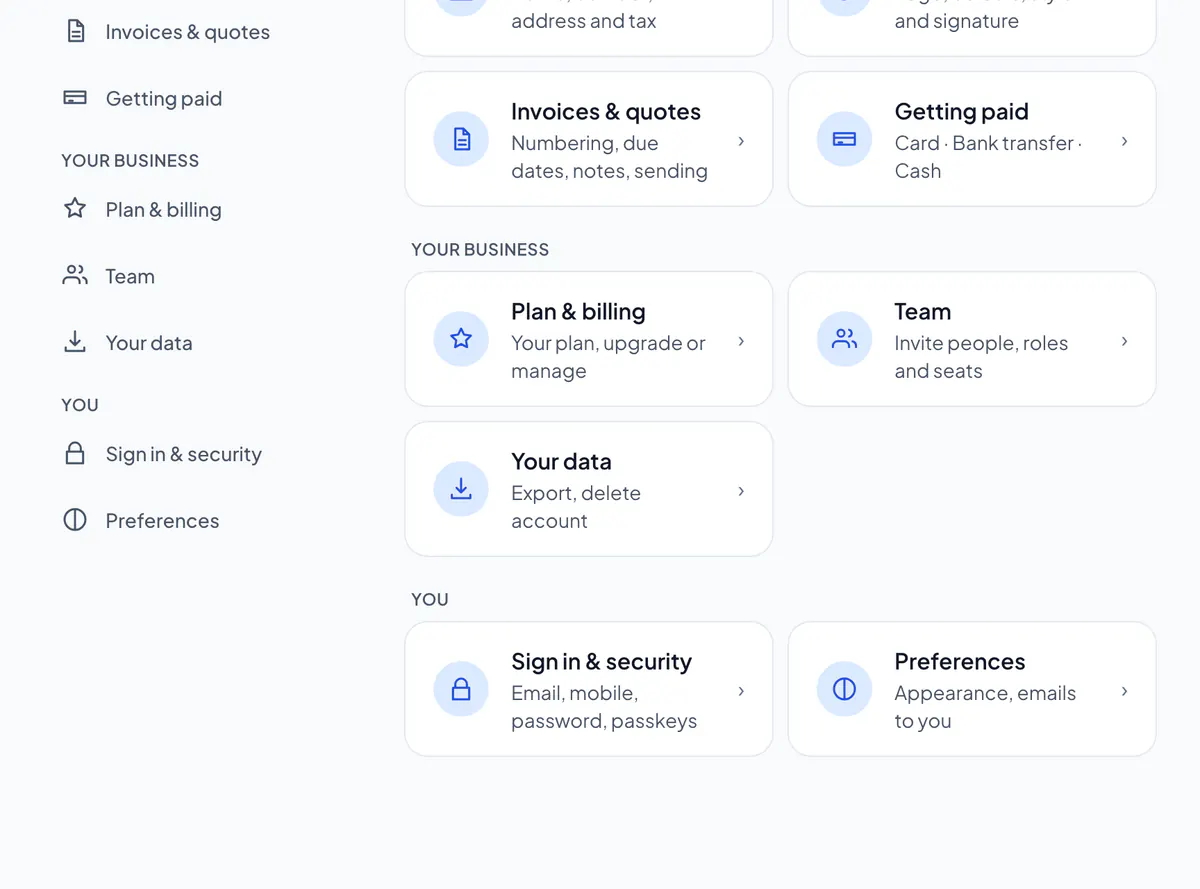
Step 1: Open Settings → Sign in & security.
Step 2: Beside Email, choose Change, type your new email over the old one and choose Send confirmation link. Open the link in that email to finish.
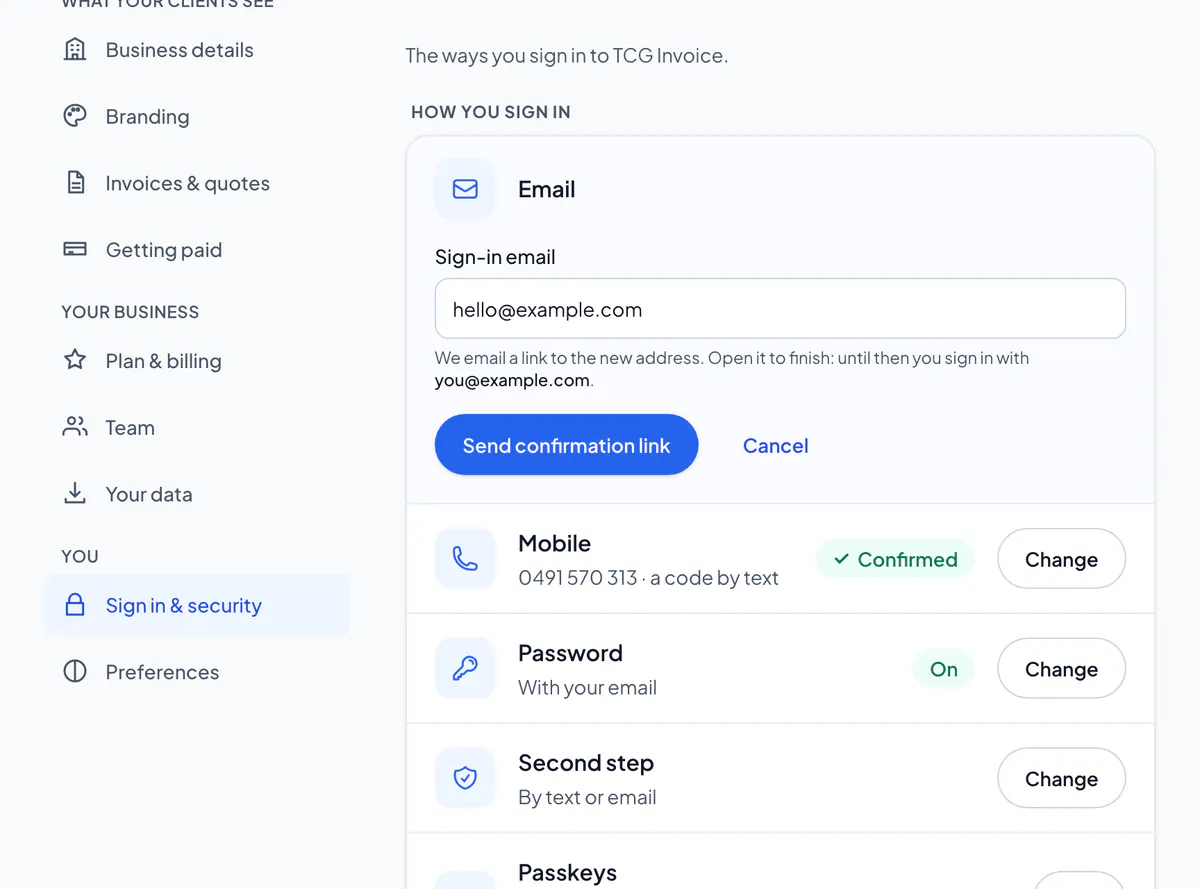
Step 3: Beside Password, choose Change (or Add, without one yet), type it twice and choose Save password.
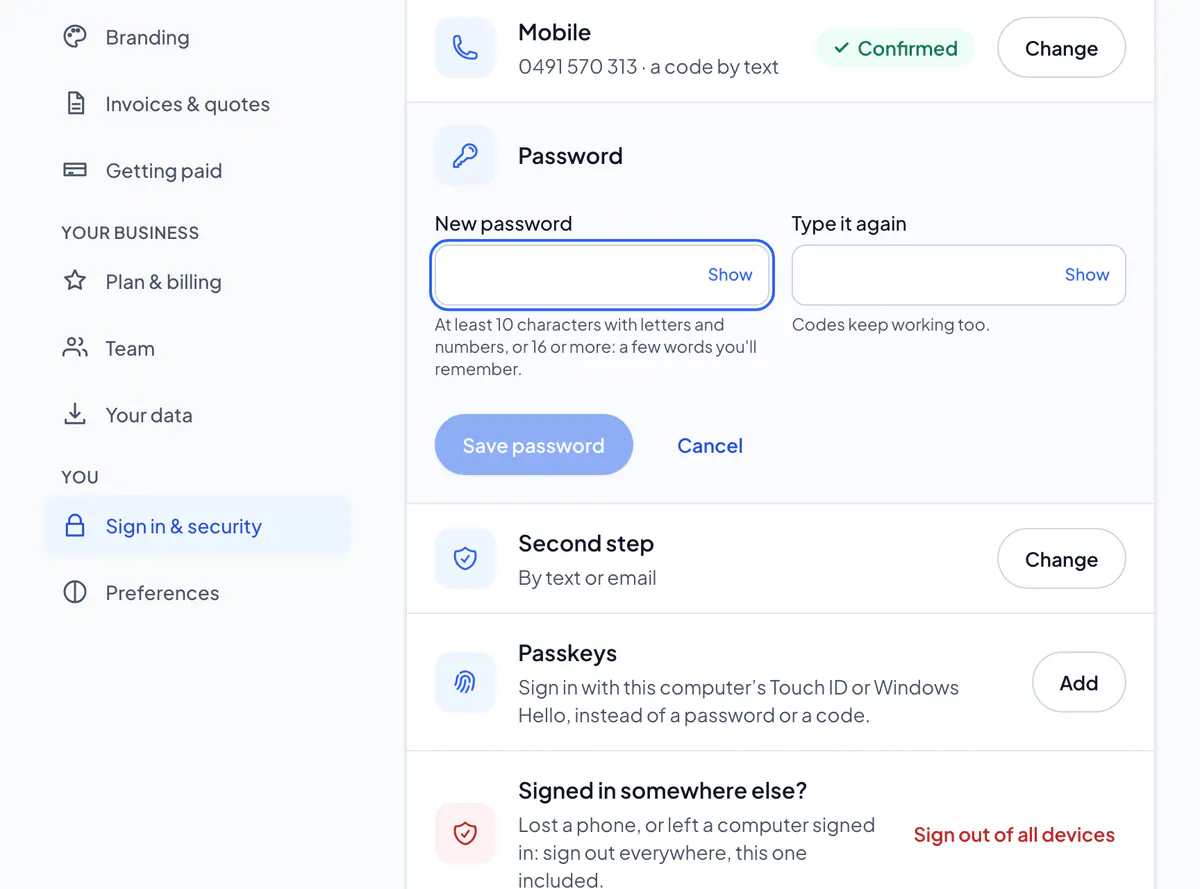
A password is at least 10 characters with letters and numbers, or 16 or more with letters. A common one, your email or business name, or one that has turned up in a data breach is refused.
This is the email you sign in with, and where most of our emails to you go; payment notices go to your business’s contact email. That one, the email clients see, is in Settings → Business details.
Did this answer your question?
Related articles
Still stuck?
Email support@thetechcompanygroup.com and we’ll help, or see Support.