How do I find a supplier’s price?
On a quote or invoice, choose From a supplier: use a price you’ve found before, or check a supplier’s. Your markup is added.
Step 1: On a quote or invoice, tap From a supplier beside Items, or the price tag on a materials line.
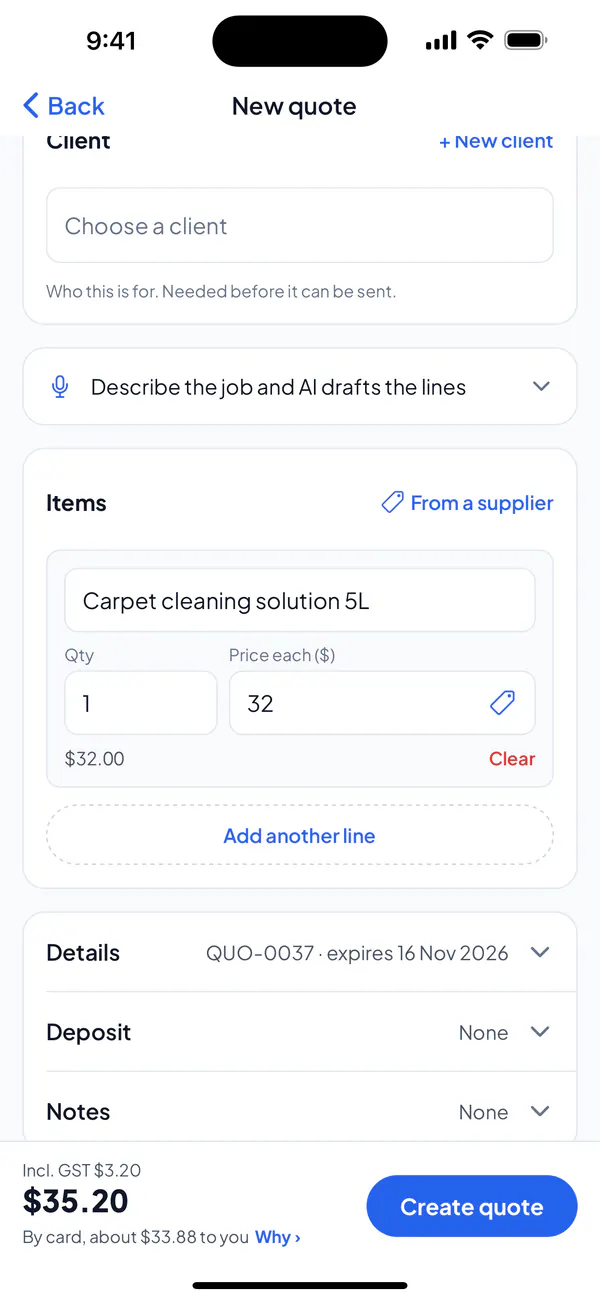
Step 2: Prices you’ve found before are listed first: tap Use (or Add, for a new line).
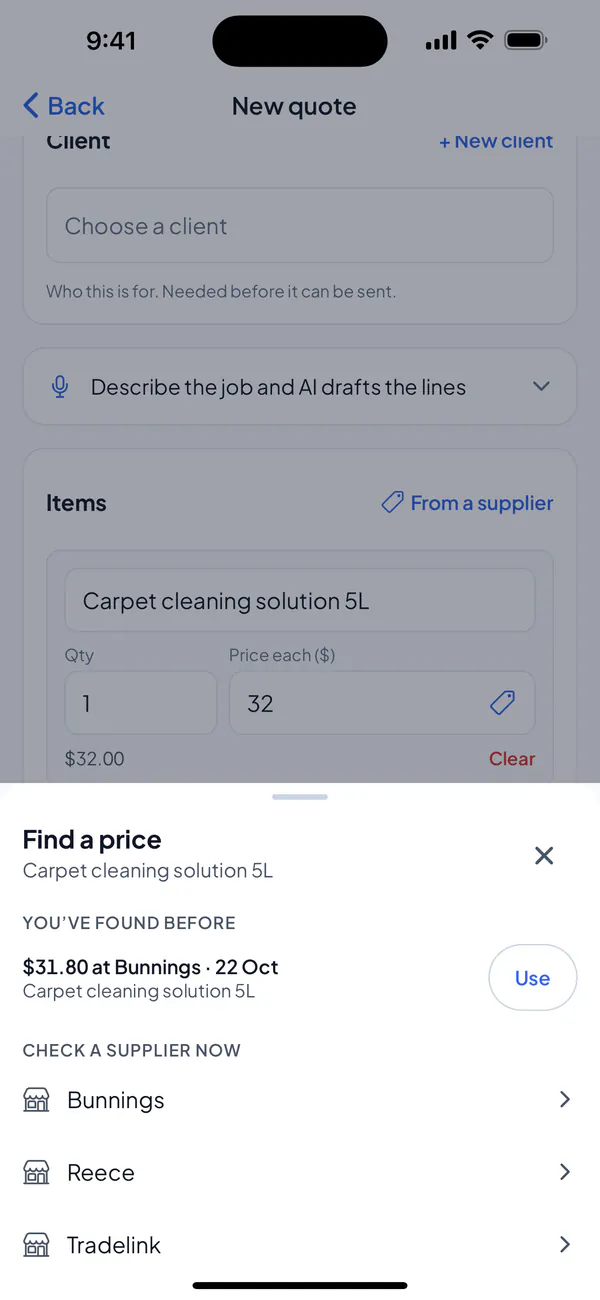
Step 3: Or tap a supplier under Check a supplier now, find the item, and tap Use this price.
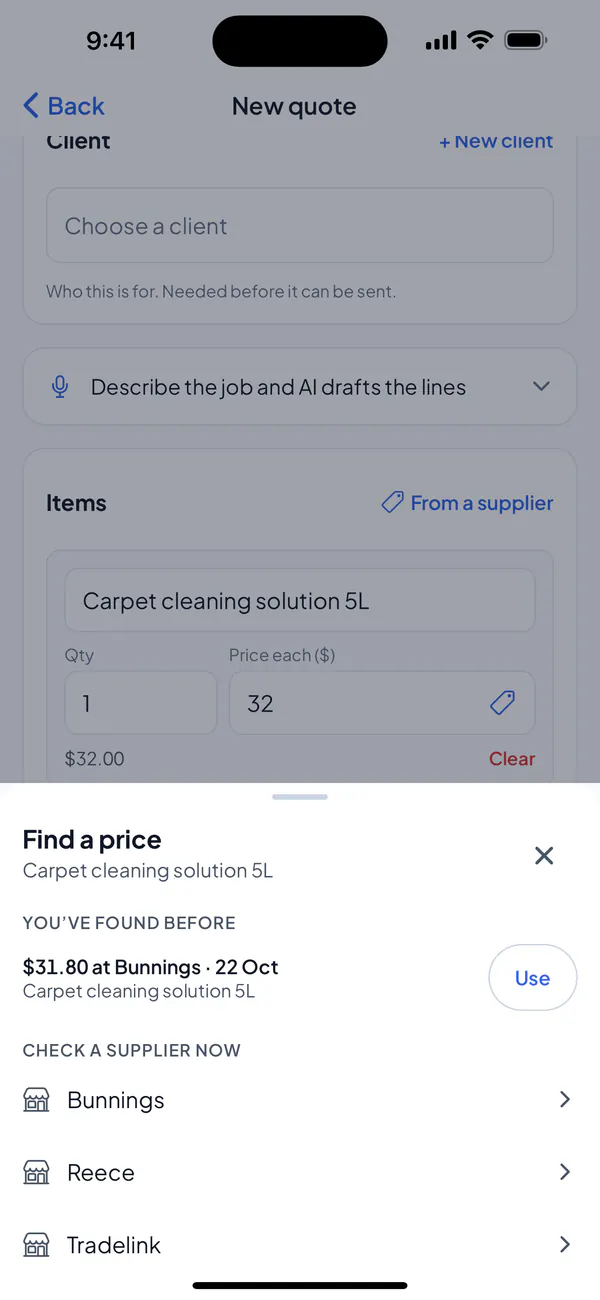
Step 1: On a quote or invoice, choose From a supplier beside Items, or the price tag on a materials line.
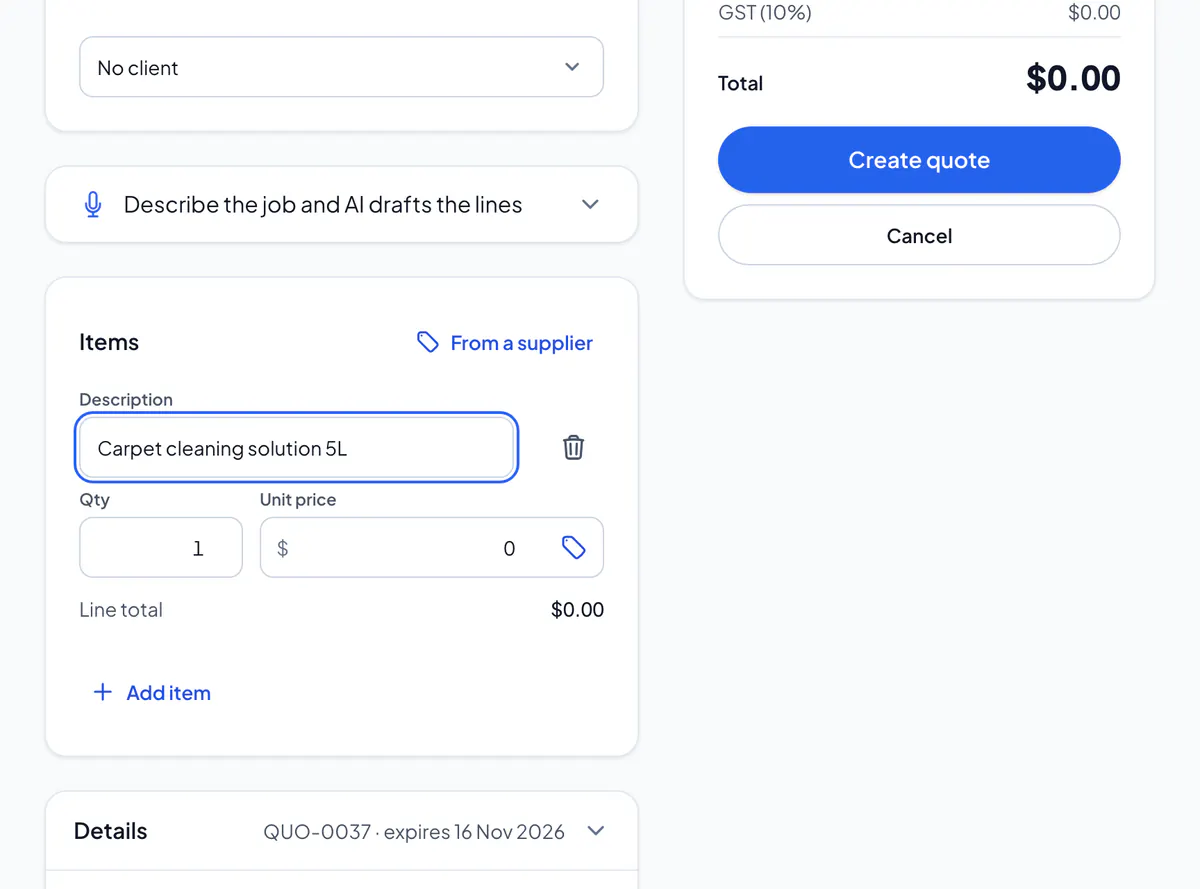
Step 2: Prices you’ve found before are listed first: choose Use (or Add, for a new line).
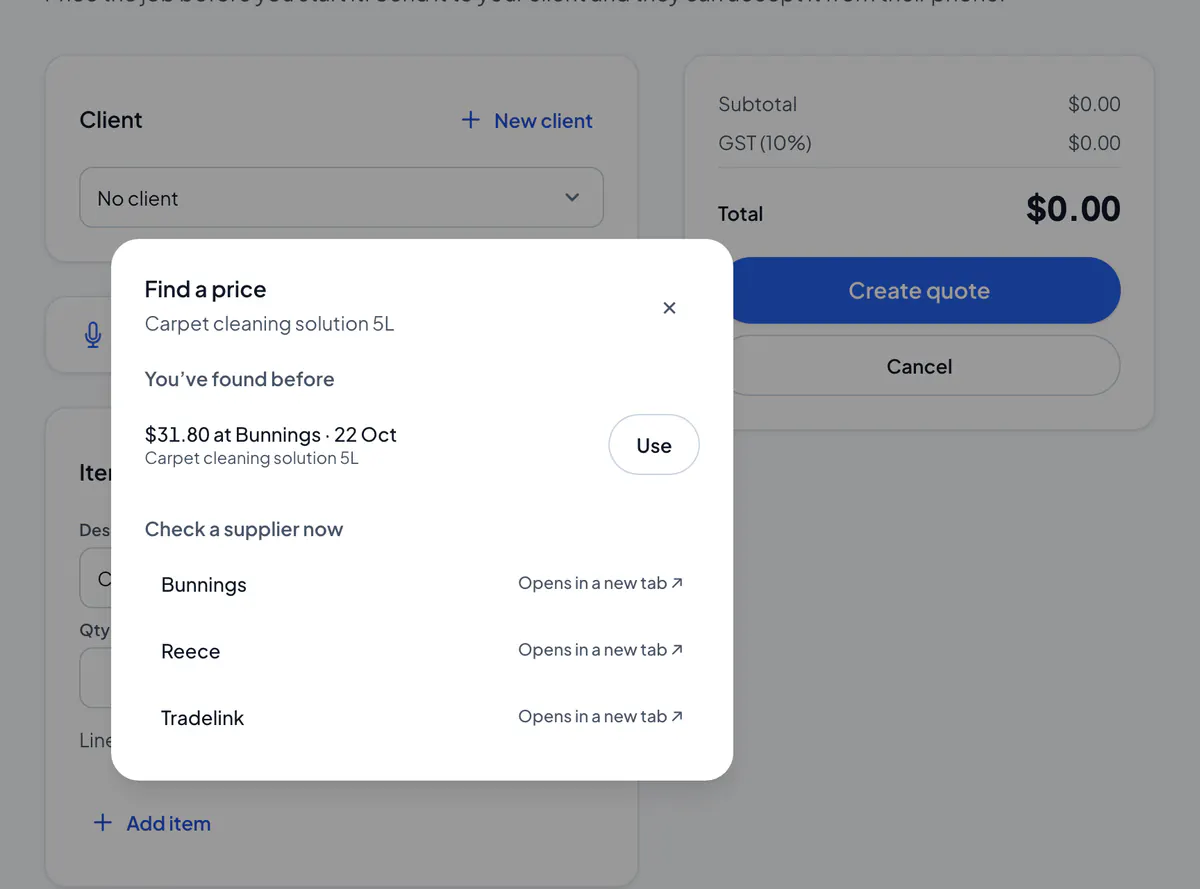
Step 3: Or choose a supplier under Check a supplier now: it opens in a new tab. Type its price in the box, and use it on the line.
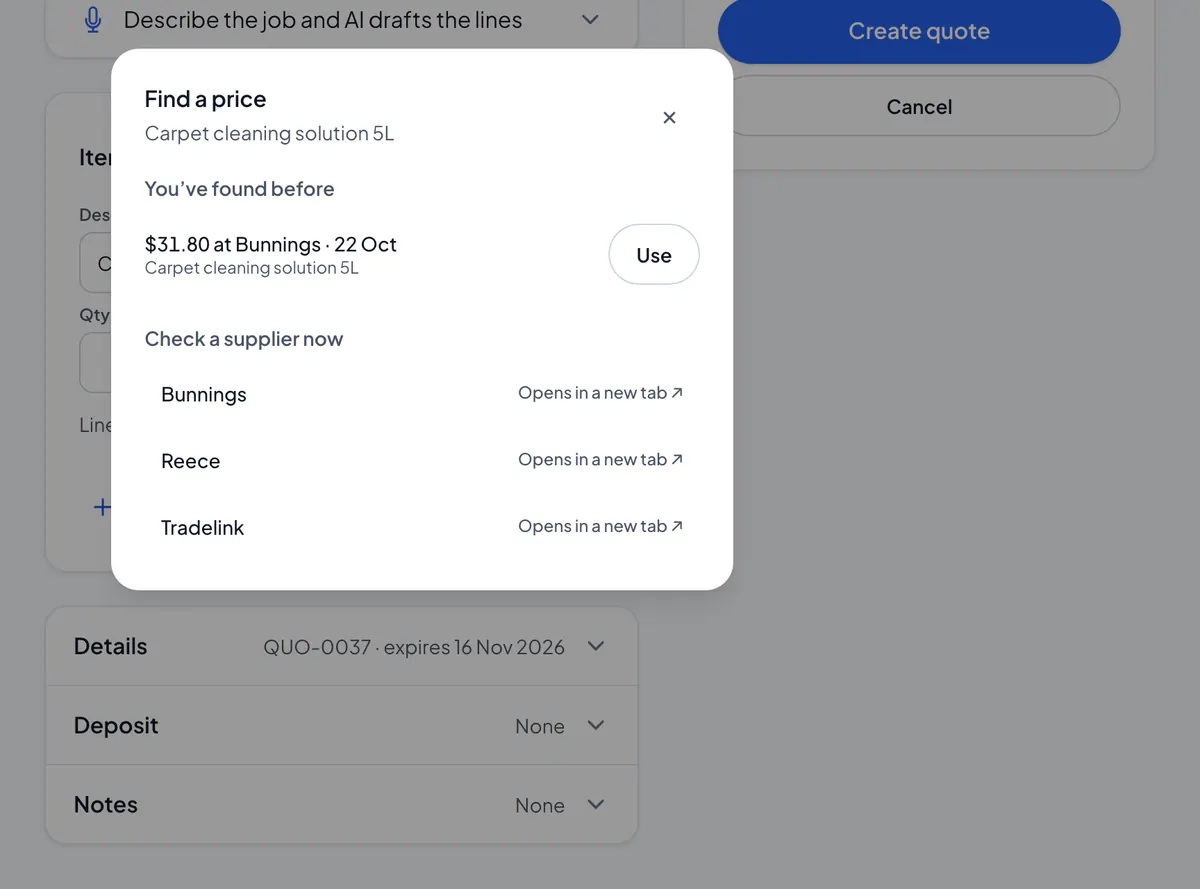
From a supplier lets you type what you need; the price tag looks for the line’s own words. Your markup on materials is added to the price: set it in Settings → Invoices & quotes.
Why the line shows less than the shop
A supplier’s price includes GST, and your lines are before GST: the GST is added once, at the bottom. So $110.00 at the shop goes on the line as $100.00, and your client pays $110.00, plus your markup. Under the line you see the shop’s price and where it’s from. Not registered for GST? The whole price goes on the line.
Did this answer your question?
Related articles
Still stuck?
Email support@thetechcompanygroup.com and we’ll help, or see Support.